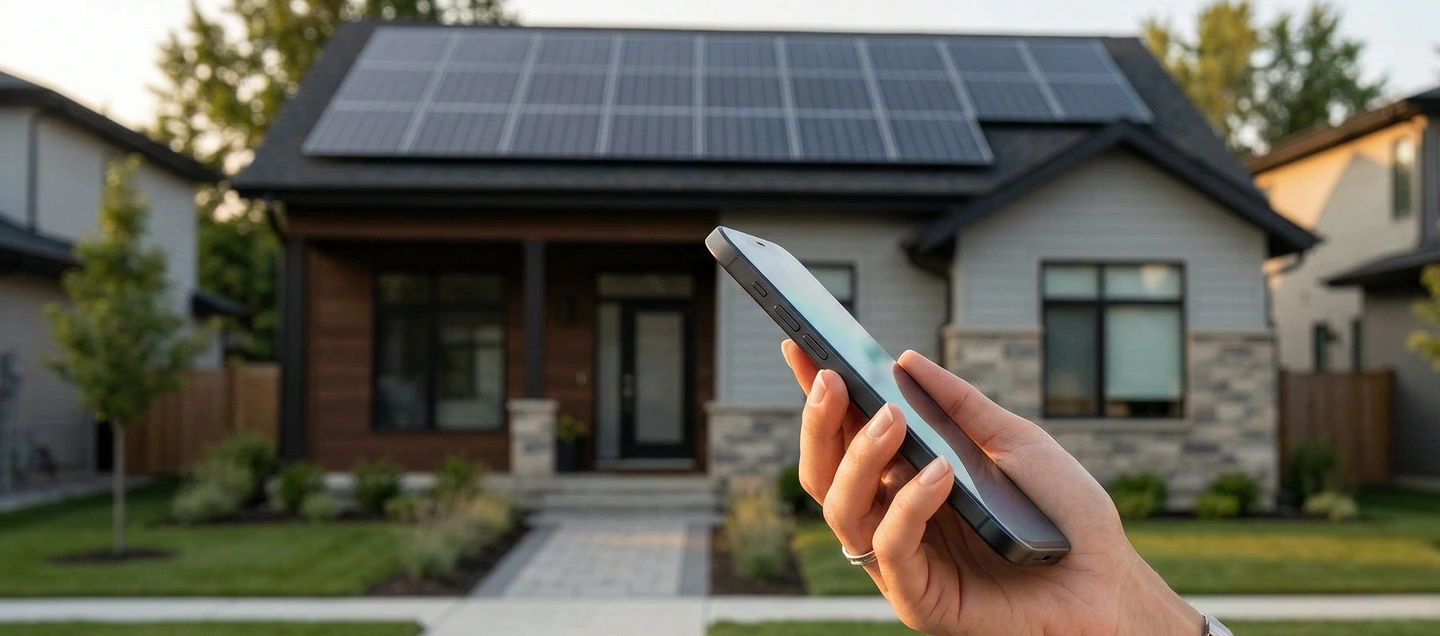

The SolarEdge app is designed to be a practical dashboard, and it works best when “normal” performance is clearly defined, because even one missed alert can have a noticeable impact over time. The app is doing its job. Homeowners just need a clear baseline to compare against.
SolarEdge monitoring alerts often point to a communication or reporting delay, since energy production and app updates operate independently. In other words, the app can pause its updates while the inverter continues generating power.

Your fastest reality check is “Last Updated” + live kW + alerts: if “Last Updated” is recent and daytime kW is moving, you’re almost always fine.
If “Last Updated” is several hours old (especially 24+ hours), or if daytime production drops to near zero alongside alerts, it is worth treating as a priority so you can confirm whether output is being affected and restore normal production as quickly as possible. Set alerts once so you don’t rely on guessing or discover a shutdown weeks later.
This guide is for Chicagoland homeowners who want to spot real problems fast and know exactly when to call for help. By the end, you’ll be able to tell the difference between “normal winter dips,” “monitoring isn’t updating,” and “your system is actually down.”
Key Highlights
- The SolarEdge app works best when you check “Last Updated,” live kW, and alerts together, since each one shows a different part of system performance.
- A recent “Last Updated” timestamp usually means the app is receiving current data, while an older timestamp can point to a monitoring or communication delay.
- 0 kW at night is normal, while daytime production is a helpful way to confirm the system is generating as expected.
- Many apparent problems are actually false alarms, especially when caused by delayed app updates, winter weather, snow cover, or temporary cloud-related dips in production.
- The app’s numbers become easier to understand once you separate kW as current production and kWh as total energy made over time.
- “Today” gives a short-term snapshot, while “This Month” helps show the broader production trend and gives better context for seasonal changes.
- The app and utility bill can look a little different because they each show a different part of the energy story: the app highlights energy flow, while the bill reflects utility timing, credit rules, and import/export calculations.
- For battery systems, the three most useful values are “State of Charge,” charge or discharge power, and backup status.
- Alerts are important because they help you catch downtime or reporting issues early without needing to constantly check the app.
- Support can be a helpful next step when updates remain delayed, shutdowns repeat, daytime production stays flat, or fault indicators appear alongside lower production.
Before You Panic, Do This 60-Second Check
If the app suddenly seems off, many homeowners simply use it as a cue to verify production and regain confidence quickly. This 60-second check quickly separates a real shutdown from a simple reporting glitch so you know what to do next.
Here’s the key idea before you touch anything: the mySolarEdge app, the SolarEdge Monitoring Platform, the “Last Updated” timestamp, your live kW, and your alerts each tell a different part of the story; when you read them together, the answer becomes obvious.
The app makes more sense once you see it as a connected chain of data, rather than a single on or off device. Your system works as a connected flow, from panels and optimizers → inverter → internet → SolarEdge servers → the app, so the dashboard reflects how smoothly each step is communicating.
That’s why the 60-second check focuses on data freshness, live production, and alerts, so you can spot whether it’s a real outage or just a reporting glitch.
3-Step Checklist (With Pass/Fail Outcomes)
If the SolarEdge app is making you nervous, you don’t need to dig through menus or guess what a chart “should” look like.
This 60-second check uses three signals (data freshness, live production, and alerts/inverter status) to tell you whether you’re seeing a harmless reporting glitch, a weather-related dip, or a real system problem that needs attention.
Step 1. Check “Last Updated”
Think of “Last Updated” as the app’s heartbeat, showing when SolarEdge last checked in with your system. When it’s current, you have a clear, up-to-date view of performance.
- PASS: Updated within the last hour → the app is receiving data and your dashboard is generally current.
- FAIL: Several hours old → a quick connectivity check (Wi-Fi/router or cellular signal) often brings updates back on track.
- FAIL (URGENT): 24+ hours old → a good time for a quick check-in to refresh reporting and confirm current production status.
If you PASS, move on to Step 2 and review live production (kW) to confirm the system is generating as expected.
If you do FAIL, first address monitoring and communications, then verify production using the inverter status and any alerts so you can get a clear, complete view of system performance.
Step 2. Check Current Power (kW) Based on Time of Day
If “Last Updated” is reasonably fresh, this step answers the question homeowners care about most: is your system making power right now?
Current Power (kW) is the “right now” speedometer for your solar production. This check is straightforward: 0 kW at night is expected, and daytime production is a great indicator that the system is generating normally.
If 0 kW continues in full daylight, it is a useful signal to review system performance more closely.
- PASS: It’s night and shows 0 kW → normal.
- PASS: It’s daytime and shows a number that changes → likely producing.
- FAIL: It’s daytime (full daylight), and production is showing a flatline trend, so this is a good time to review for possible shutdown, fault, or curtailment and confirm normal operation.
Under the Illinois Commerce Commission framework (Title 83 Part 466) and ComEd DER interconnection guidance, smart inverters aligned to IEEE 1547-2018 (often certified via UL 1741 SB) can show warning states during grid-voltage events, so not every alert means the inverter is "broken."
If you PASS, you’re likely producing; check alerts briefly to confirm nothing critical is being reported.
If you FAIL, head to Step 3 to review alerts and inverter status and capture screenshots, helping you determine whether this is a real fault or a temporary grid or communication issue.
Step 3. Check Alerts + Inverter Status
If Steps 1-2 did not confirm normal operation, this step helps clarify whether the system is reporting a real issue or a temporary monitoring blip. Alerts and the inverter’s status are the closest thing to your system “speaking up” when something’s wrong.
In the mySolarEdge app, begin by checking “Last Updated.” Since SolarEdge data typically refreshes about every 15 minutes, this helps confirm you are viewing the most current information available.
Next, confirm S_OK, then take a quick look at the inverter’s green/blue/red LED indicators. Together, these checks help you confidently confirm whether everything is communicating normally and operating as expected.
Alerts reflect what the software is identifying, while inverter status offers the hardware check that helps confirm the full picture. Read them together: a calm dashboard with normal inverter status usually means the system is operating as expected, while new alerts or abnormal status signals indicate that the system may need closer attention.
- PASS: No new alerts + inverter looks normal → likely okay (or a temporary data hiccup).
- FAIL: New alerts, fault messages, or abnormal inverter status suggest a real issue, and documenting it is recommended.
If you PASS, you can stop troubleshooting; keep an eye on it for the next update cycle and make sure alerts are enabled so you won’t miss anything later.
If you FAIL, the next best step is to document what you see by taking screenshots of the alert and production screen, along with a quick photo of the inverter lights or status, then share that information with support for fast diagnosis.
Most Common False Alarms
If you’re staring at the app thinking “something’s wrong,” there’s a good chance you’re looking at a false alarm, not a failure. These are the three patterns that trick homeowners most often, and they’re easy to rule out in seconds:
- Night vs day callout: 0 kW at night is completely normal, and daytime production is a helpful way to confirm the system is operating as expected.
- Monitoring vs production warning: Because app data can occasionally lag behind real-time conditions, reviewing both “Last Updated” and live power helps create the clearest picture of system activity.
- Chicagoland winter reality check: In winter, snow accumulation can have a noticeable effect on production, so checking panel conditions first can quickly add useful context.
If you see an error code or alert, screenshot the message, note the time, and send it to Green Attic Roofing with a photo of the inverter LEDs/status.
Most codes fall into three buckets: communication/reporting, grid/environment, or hardware/safety. If a code falls into the last bucket or shutdowns keep repeating, support can help with the next steps.
If one of these situations matches what you’re seeing, check the system again after the next update cycle. Review both the “Last Updated” timestamp and the live kW reading.
If you still need more clarity, especially when the system shows 0 kW during midday along with older updates or system notifications, screenshots and inverter status details can help confirm what’s happening.
What the Numbers Mean
If you’ve ever looked at the SolarEdge dashboard and thought, “Okay… but is this good or bad?” you’re exactly who this section is for. The big picture is that these numbers aren’t just stats; they’re decision signals that tell you what’s normal, what’s suspicious, and when to dig deeper.
Here’s the “proof” layer you’ll see throughout: the mySolarEdge app, kW, kWh, export, import, and self-consumption all work together. Once you know how they connect, the dashboard stops feeling random.
Because production naturally changes with weather, season, and shading, the clearest picture comes from watching patterns, such as sudden drops, flatlines, or older updates, instead of putting too much weight on one unusual moment.
In Chicago, summer production is usually far higher than winter because days are longer and the sun is higher; winter dips are common, and snow cover can temporarily push production near zero even when the system is fine.
kW vs kWh: “Speed Right Now” vs “Total Made”
If these two are viewed separately, it can be harder to get a clear read on system performance, which is why looking at them together gives the most accurate picture. The big picture answer is simple: kW is “right now,” kWh is “over time.”
In the SolarEdge view, kW is your live production rate, kWh is your accumulated energy, and both are driven by irradiance (how much sunlight is hitting the array). For example, if you’re producing 3 kW right now for about 6 hours across the day, that can add up to roughly 18 kWh today.
Homeowners confuse “Speed Right Now” and “Total Made” because the graphs look like “savings,” but they’re really showing energy and power, so a low kW moment (cloud) can look scary even if the day’s kWh total ends up normal.
“Today” vs “This Month:” Why Both Can Be Misleading
“Today” may look lower during a cloudy hour, so the full-day view usually gives the clearest picture. The big picture is this: “Today” is a daily snapshot, while “This Month” helps show the trend that matters most over time.
Here’s the proof logic: Today (kWh) resets at midnight and gets distorted by passing clouds, while “This Month” smooths those bumps and helps you spot true change. Use the month view for trend, and use live kW for “is it working right now.”
Winter patterns are often seasonal: shorter days, lower sun angle, and snow cover can all make “Today” look different even when the system is operating normally.
Export vs Import: Why Your Bill Doesn’t Match the Pretty Graph
If your app shows lots of solar, but your bill still feels high, you’re not crazy. The big picture is this: the app shows how energy is moving, while your bill brings in utility timing, rules, and credits, which can create a different view from the graph.
In plain terms, export is solar you send out, import is power you pull in, and self-consumption is what you use directly at home (usually the most valuable). Your credits depend on the utility and policy layer. ComEd, net metering, the Illinois Commerce Commission, and laws like CEJA can affect how exported energy is credited over time, so credits can change based on program timing.
For Chicagoland (ComEd) homeowners, understanding net metering (supply-only after CEJA) and Illinois Shines (Adjustable Block Program) RECs/SRECs helps you connect the app’s kWh exported to the utility bill’s Net Metering Credit – Supply and your overall payback.
The app estimates energy flows, but your utility bill can apply credits by category (supply vs delivery), time period, and rules that may change; plus, your home may still import power at night or during peaks even if you exported earlier.
That’s why you can “produce a lot” and still have charges, especially if much of your solar is exported midday and you import later when solar is low.
If You Have a Battery: The Only Three Numbers That Matter
Batteries add a lot more data to the picture, so choosing the right metric can make system performance much easier to read. The big picture answer is: you only need three numbers to know if the battery system is behaving normally.
Focus on State of Charge (SOC), charge/discharge power, and backup status, which tell you whether the battery is filling, supporting the home, or standing by for outages.
During an outage, it’s normal to see SOC drop while discharge power rises; during normal daily cycling, it’s normal to see SOC rise midday (charging from solar) and fall in the evening (powering the home).
Don’t Lose Months of Solar: Set Alerts Once and Forget It

Alerts are your “silent insurance policy.” They catch downtime early, so you don’t lose weeks of production without noticing.
Why People Miss Outages
Most missed outages are usually not caused by the solar equipment itself, but by notifications not reaching the right person. One small setup detail can make the difference between catching a real fault early and having it go unnoticed.
Here are the most common notification settings to review when making sure outage alerts stay visible to ensure you catch every notification:
- Alerts turned off
- Wrong email address
- Push notifications disabled
- App removed/logged out
- New phone and notifications didn’t carry over
The 5-Minute Alert Setup That Saves Real Money
This is one of the things you can do as a system owner with the highest ROI. The big picture answer is: turn on alerts once, confirm they work, and you’ll catch problems early without thinking about it again.
Here is a 5-minute setup checklist to help you:
- Open the mySolarEdge app settings and find alerts/notifications.
- Confirm the primary email is correct (and check spam/junk rules).
- Enable push notifications in the app.
- Enable push notifications in your phone’s system settings for the app.
- Choose which alert types you want (at minimum: production/communication/fault alerts).
As a confirmation step, trigger a test notification if available, or confirm you receive the next normal alert/update (and that it lands on the right phone/email).
What Alerts Should Say
Alerts only help if the right people receive them and they know what to do. Set alerts to go to the people who can respond right away, and make the message explicitly say when to call us and what to send (screenshots/photos).
Here are some of the recommended recipients of alerts:
- Homeowner
- Partner/spouse
- GreenAttic (as your support partner)
If you see a fault alert, daytime 0 kW, or “Last Updated” older than 24 hours, call Green Attic Roofing. Include a screenshot of the alert + dashboard and a photo of the inverter LEDs.
Why Trust Green Attic Roofing
Green Attic Roofing is a Chicagoland roofing and solar contractor with hands-on experience supporting SolarEdge systems, helping homeowners understand monitoring alerts, troubleshoot concerns related to performance, and respond quickly when app data suggests a possible issue.
When your solar app shows something unusual, Green Attic Roofing can help you figure out whether it is a harmless monitoring delay or a real system problem.
Backed by certified professionals, more than 25 years of roofing experience, and specialized solar expertise, Green Attic Roofing is built to give clear answers and reliable support.
Frequently Asked Questions
Why does the data in my SolarEdge monitoring app look different from my bill?
The data in your SolarEdge monitoring app and utility bill are different because they tell the same story from two different angles: the app shows near-real-time solar production and energy flow, while your bill applies your utility’s billing-cycle timing and credit rules.
That’s totally normal; your statement and the app often summarize the same energy activity in different formats, so exports, imports, and credits may appear grouped or calculated a bit differently than the app’s graphs. The good news is this is normal; once you compare the same date range and look at import vs export, the numbers usually line up in a way that makes sense.
If my SolarEdge Inverter is blinking a green light, is it working?
Usually, yes, a blinking green light often means your SolarEdge inverter is operating and producing power. To be sure, check the monitoring app: if “Last Updated” is recent and you see daytime kW changing, your system is working normally.
If the green light is blinking but the app shows 0 kW during the day, a stale “Last Updated,” or new alerts, take it as a sign to take screenshots and snap a photo of the LED lights, so your support partner can quickly confirm what’s going on and guide the next step.
Which SolarEdge inverter error codes are urgent?
Urgent SolarEdge error codes are typically the ones linked to safety protections or repeated shutdown events, such as arc/AFI faults, ground/insulation (isolation) faults, or anything that repeatedly triggers the system to pause production as a precaution.
Most alerts aren’t emergencies, and the app gives you enough info to act quickly: screenshot the code, note when it started, and contact support so it can be diagnosed and resolved fast.
Why does solar production drop significantly during winter in Chicago, even when nothing is wrong?
Solar production drops significantly during winter in Chicago because the season brings shorter days, a lower sun angle, more cloud cover, and occasional snow on the panels.
That change is usually a normal part of winter performance, and your system can still be operating properly while producing less than it does in sunnier months.
Why does the SolarEdge app show 0 kW, but my house still has power?
The SolarEdge app can show 0 kW even while your house still has power because your home also receives electricity from the utility grid.
In many cases, this simply means the solar system is not producing at that moment, such as at night, during low-light conditions, or while the app is waiting on a fresh update. Your home can still run normally because grid power continues to support it.